Jira Admin Hub
What is this extension for?
Jira Admin Hub is a browser extension (Chrome and Firefox) that adds a tool panel to Jira Cloud, reachable from the sidebar. It was built in-house to cover needs Jira does not address natively: team capacity planning, collective estimation, data cleanup, advanced search, project templates.
- Everything is modular. Each feature is a module you enable or disable individually. You only use what you need.
- Nothing leaves your browser. There is no server: the extension talks directly to Atlassian APIs with your session. Your settings stay local.
- Data stays in Jira. Modules that need to share information (poker sessions, templates, team configurations) store it in Jira tickets, nowhere else.
Opening the hub
Three ways in, your pick:
| Method | Detail |
|---|---|
| Jira sidebar | An “Administration addon” entry is added under “For you”. This is the main path. |
| Keyboard shortcut | Alt + Shift + J from any Jira page. |
| Extension icon | In the browser toolbar: an “Open the Hub” button and the list of active modules. |
The hub opens as an overlay on top of Jira, without leaving the current page. It is resizable (the size is remembered) and closes with the cross or Esc.
The home screen
The hub opens on a home screen (new in 2.2) that gives you the essentials at a glance:
- the current sprint of the board you follow (picked in the tile and remembered; defaults to the last board opened in the Sprint Manager — and when the board carries several active sprints, a second selector remembers the followed sprint): a progress bar of the completed estimate, a time-elapsed marker on the bar, an ahead / on track / behind badge, days left and end date;
- team notes: short messages (“prod freeze until Thursday…”) addressed to a specific Atlassian team or to everyone. You only see notes for teams you are a member of, plus general notes — each note shows its team, author and date. Add and delete straight from the tile, all recorded in the Audit log;
- the team sharing state, with direct access to its setup;
- the last closed sprint (done / remaining) and the average velocity — “View trends” opens the Retro directly on that sprint;
- the team's latest bulk actions, pulled from the Audit log;
- quick access: your recent modules, then every active module;
- a link to this guide.
New in 3.0: the home screen is yours to compose: the ⚙ gear in the banner picks the tiles shown, the ⠿ handle on each tile reorders them by drag and drop, and "+ JQL tile" creates your own tiles (a title, a JQL query → the list of issues, clickable). And in 3.2, tabs: create as many dashboards as you need (e.g. "Client X tracking") with the "+" in the tab bar — each tab has its own tiles and order, while budget and JQL tiles stay shared in the catalogue. Double-click to rename, × to delete (the Home tab is permanent). Three additions: Weekly Sync (the week's Confluence documents per team, with direct links), My issues in progress (your "in progress" issues, clickable — the only personal tile), and the Sprint tile gains the 7-day flow (created vs done) of the followed board.
Enabling and configuring modules
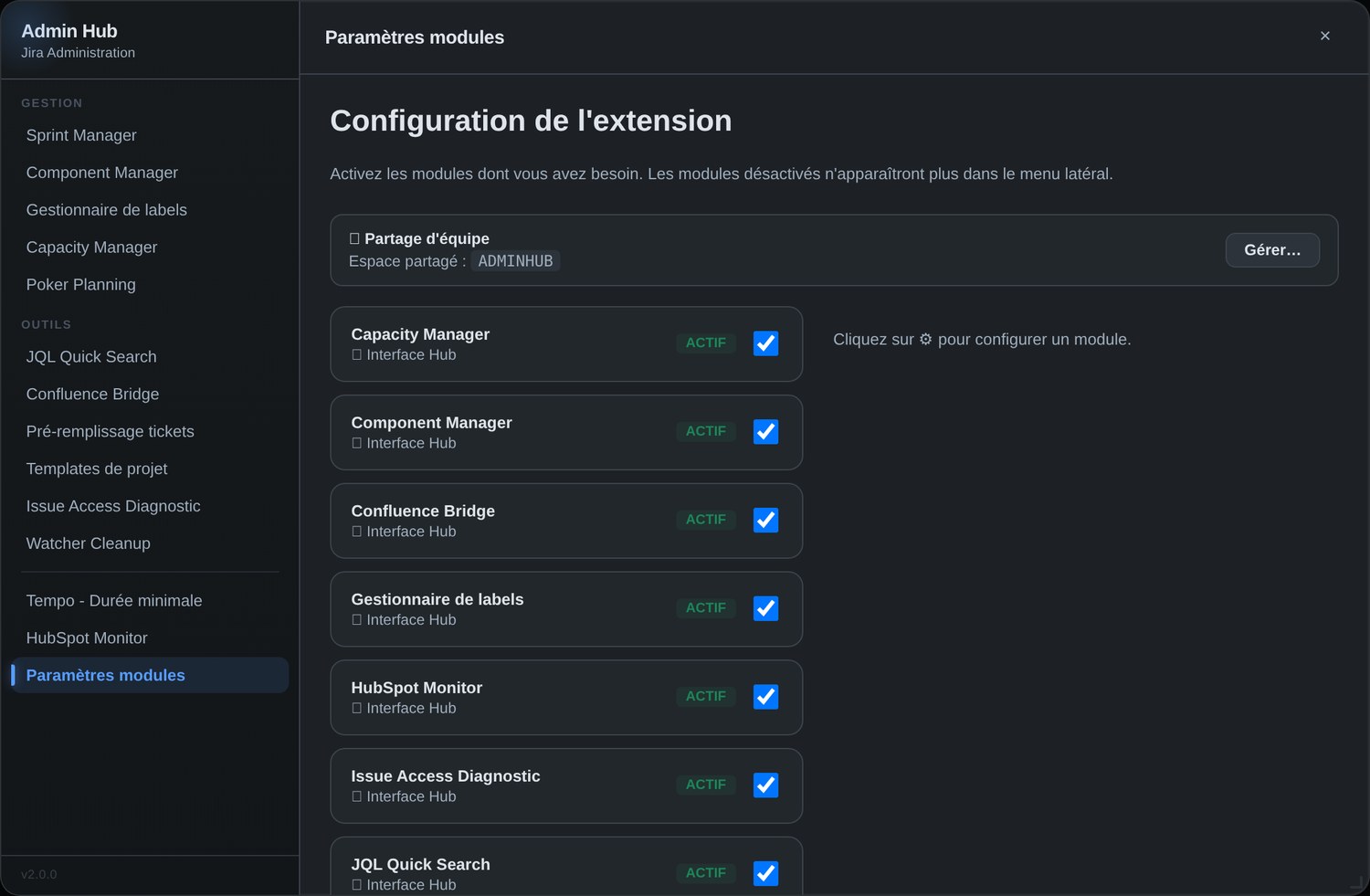
The Module settings module (bottom of the navigation) lists everything available. Each module has a switch, and a gear ⚙ when it has its own settings (project key, Story Points field, integration tokens…).
A disabled module disappears from the navigation and no longer runs.
Team sharing (optional)
By default your settings are personal: they live in your browser. Team sharing lets you distribute selected configurations to your colleagues: JQL presets and favourites, project templates.
The idea: a dedicated Jira project (by convention ADMINHUB) serves as the shared space.
Shared configurations are stored there in technical tickets.
- Anyone with access to that project can read and modify shared configurations.
- Your tokens and API keys are never shared — the extension technically refuses to write them into the shared space.
- Sharing is explicit: nothing leaves automatically. You click 👥 on the item you want to distribute.
If a colleague has already created the space, the extension offers to join it when the hub opens. Since 2.2, joining configures the extension by itself: the team's baseline settings (Capacity Manager, aging thresholds) are applied immediately, and if you had not configured anything yet, the team's recommended module set is enabled for you. You can decline, ask not to be prompted again — and disconnect at any time.
In "Module settings", the "📌 Recommend my selection" button publishes your module selection as the starting point for newcomers (never forced onto those who already have their own settings).
Since 2.1, the team space also carries:
- baseline configurations — a team member can publish the Capacity Manager instance settings (hours/day, Story Points field…) and the Sprint Manager aging thresholds. They apply automatically to anyone who has not set anything locally; your local settings always take precedence, and a “Follow team settings” button lets you align (your tokens stay local);
- the sprint snapshots that feed the Retro Trends;
- the bulk actions log, browsable in the Audit log module.
Management modules
These modules support the day-to-day steering of a team: sprints, capacity, estimation, reference data.
Sprint Manager
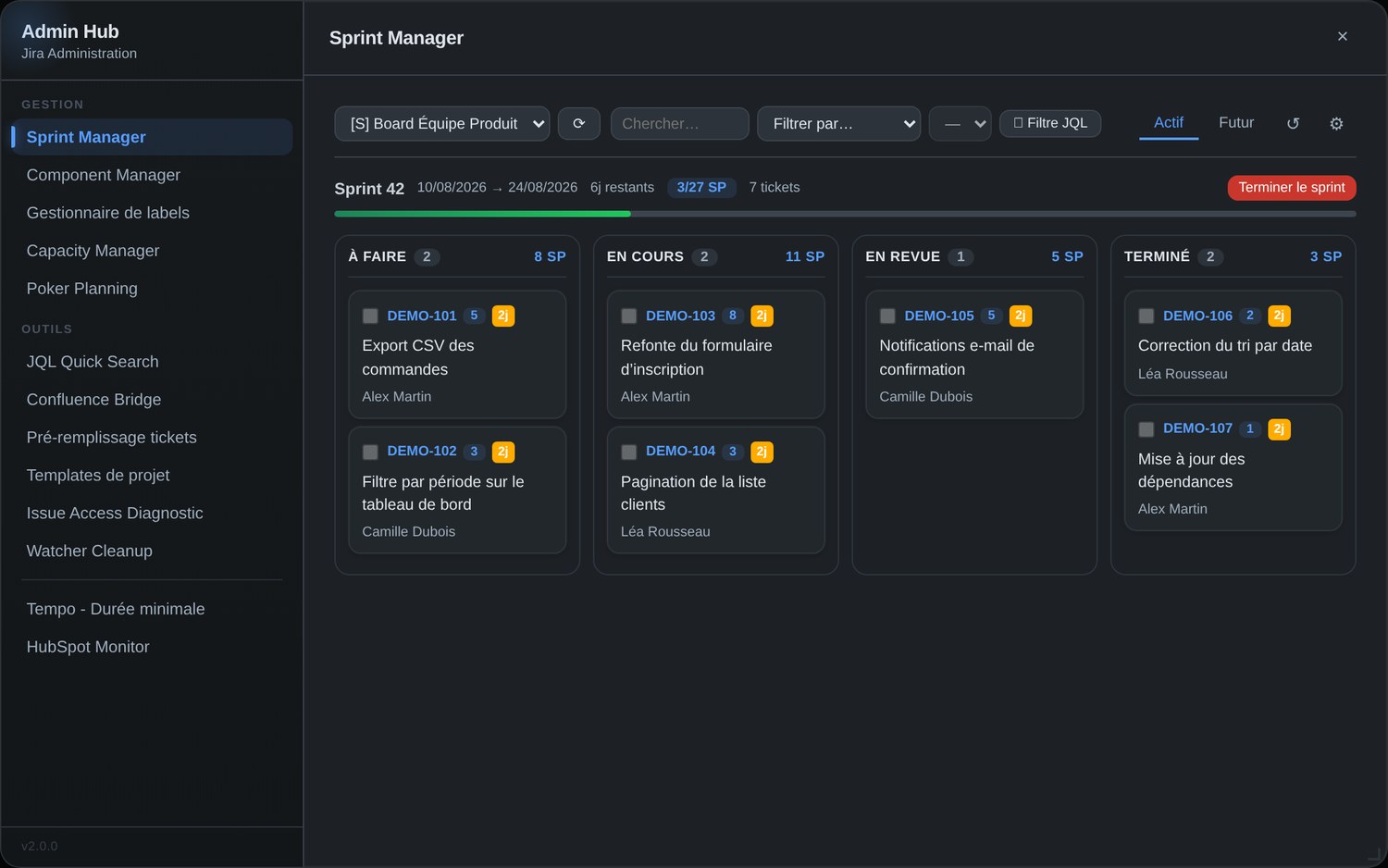
A denser board view than Jira's, with the bulk actions that are missing natively.
The board
- Board picker, toggle between active and future sprints.
- Columns taken from the board configuration, with a ticket counter and Story Points total per column.
- On each card: key, Story Points, assignee, priority, labels, and an aging badge (days since the last status change — colour thresholds are configurable).
- Drag and drop between columns, or the → button for a quick transition.
- Filters: free text, dynamic field, or a JQL filter (including your saved Jira filters).
- Click a card: a detail panel with description, comments and attachments (HTML files can be previewed directly).
Bulk actions
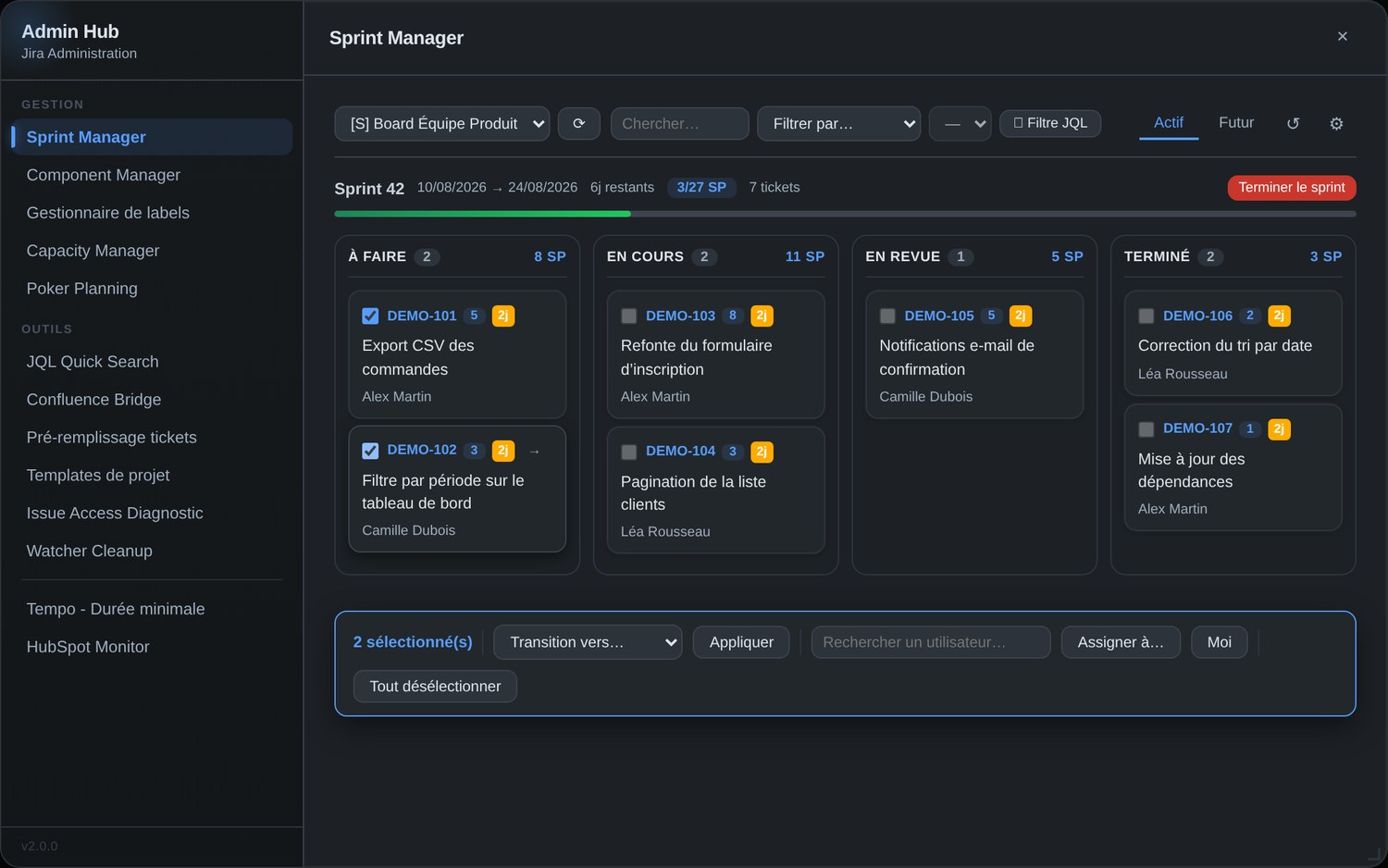
Every card carries a checkbox. As soon as one ticket is selected, an action bar appears at the bottom: transition to a column, or assignment to someone (search by name, or a “Me” button). Operations run one by one, with a success/failure count at the end.
Assisted sprint closure
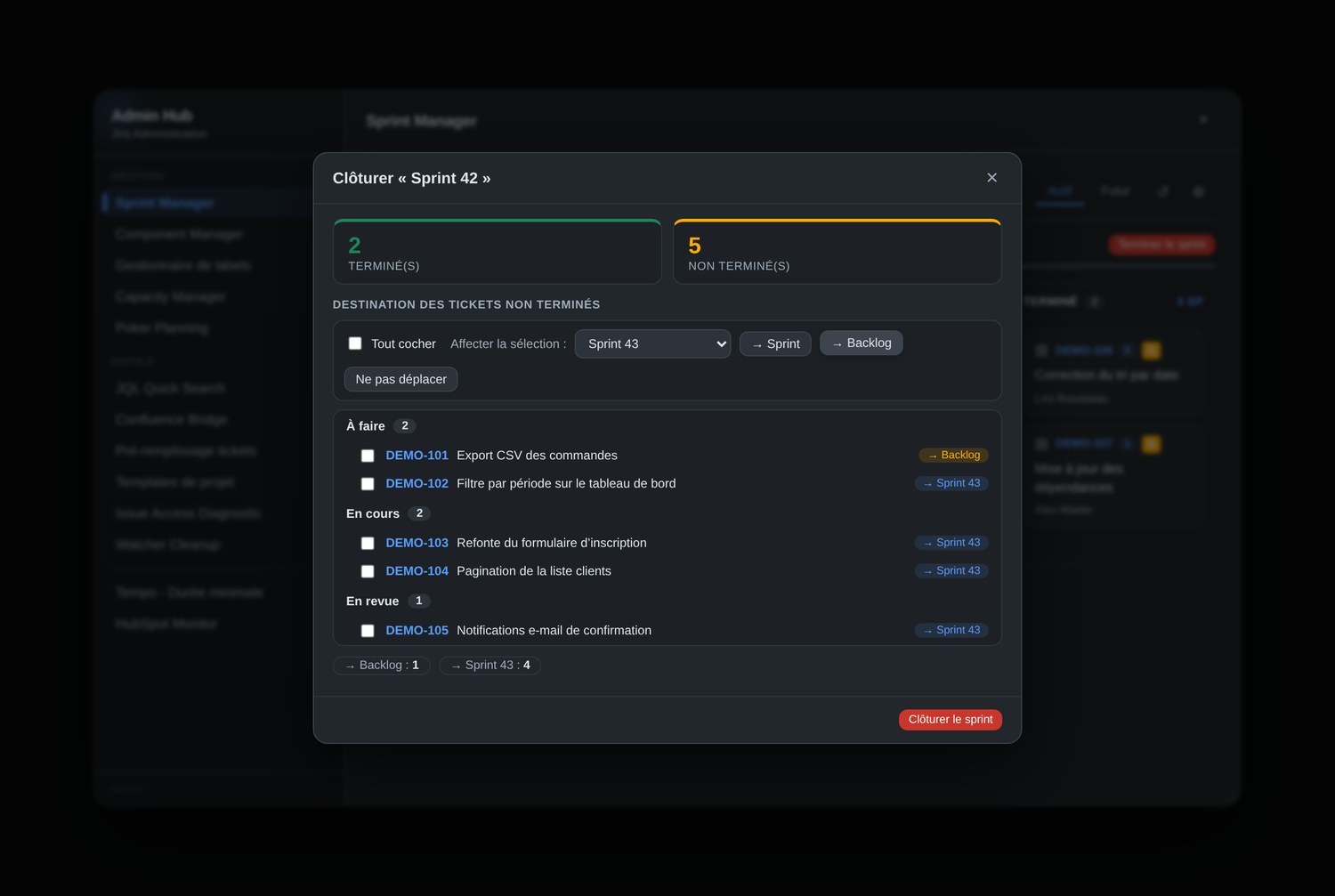
The “Complete sprint” button opens an assistant rather than a bare confirmation:
- A count: done / not-done tickets.
- The list of remaining tickets, grouped by column (collapsible when long).
- Per-ticket destination: tick tickets then send them to the next sprint, to the backlog, or leave them in place. Each row shows its destination, and a summary counts the groups.
- After closing, a button leads straight to the Retro of the sprint you just completed.
- If team sharing is configured, the closure also writes a sprint snapshot (done / remaining tickets and Story Points, chosen destinations) into the shared space — that is what feeds the Retro Trends.
Weekly Sync
The Weekly Sync module (new in 3.0) prepares the cross-team weekly meeting. The principle: your meeting document stays in Confluence — that is where the team fills in weather (projects, people, clients), objectives, decisions and dependencies. The extension does three things:
- Read — for each team (those with boards mapped in the Capacity Manager), the week's Confluence page is found automatically: first the remembered page, otherwise by scanning the previous week's sibling pages for one carrying a date of the current week — your existing naming convention is respected. "🔗 Link a page…" remains available for bootstrapping.
- Enrich — indicators extracted live from Jira: the achievements of the last 7 days (big achievements in bold, per-team story-point threshold), the current sprint (progress, time marker, ahead/behind), in-progress per person, the 7-day in/out flow, and a single notable fact (an old issue finally resolved, the most overdue due date, or the issue that has not moved for the longest).
- Prepare — "🗓 Generate next week" creates one Confluence page per team, named after your convention (the date in the title is simply shifted by one week) and under the same parent. The page is pre-filled: weather S-1 copied, non-✅ objectives carried over with incremented age (⚠ from 3 carry-overs), decisions re-injected with "Kept?", dependencies copied, and in the Decisions section the Jira indicators as native coloured status lozenges (ticked achievements, sprint with progress bar, in-progress per person, flow). A dialog announces the destinations before creating and shows the result page by page, with links. Each team receives a note saying "your page is ready to fill".
Two views: Preparation (each team checks its page and ticks/unticks the achievements to embed) and Summary — the merge of all team documents for the team-leads meeting: a figures overview per team, then only what deserves the session (🟠/🔴 weather, decisions to assess, objectives in difficulty, red dependencies). In the settings: teams shown and their order, per-team "big achievement" threshold, cause codes in "CODE (label)" format, target Confluence space. Links and generations are recorded in the Audit log.
Capacity Manager
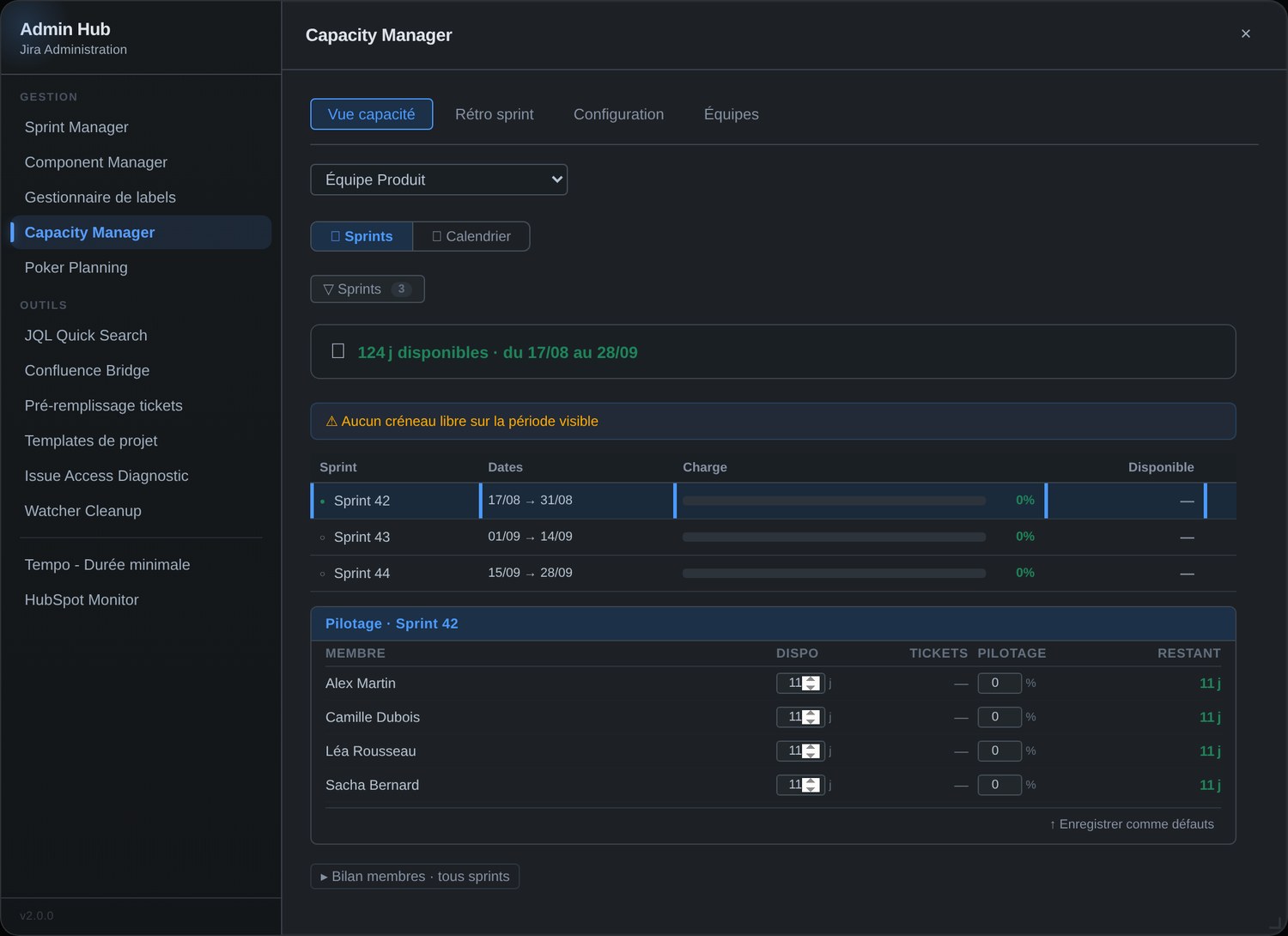
Answers the question “how much work can this team actually absorb?”, then “where did the time go?” afterwards. Four tabs.
Capacity view
- Based on Atlassian teams: you map one or more teams to boards (with an allocation rate if the team is not 100% on that board).
- Two modes: Sprints (the board's upcoming sprints) or Calendar (weeks or months, horizon up to 6 months, with Table, Gantt and Heatmap views).
- For each sprint: committed load, available capacity, and a per-member breakdown — availability in days, pilotage rate (share of non-productive time), and what is left.
- The Availability and Pilotage fields are edited without recomputing on every keystroke (2.1): modified values switch to a dashed outline, and a “✓ Apply” button commits everything at once (“Discard” reverts).
- Absences are deducted automatically from designated absence tickets (holidays, training…). With a Tempo token configured, the deduction is done per person.
- A “backlog to distribute” card shows what remains to be placed.
Sprint retro
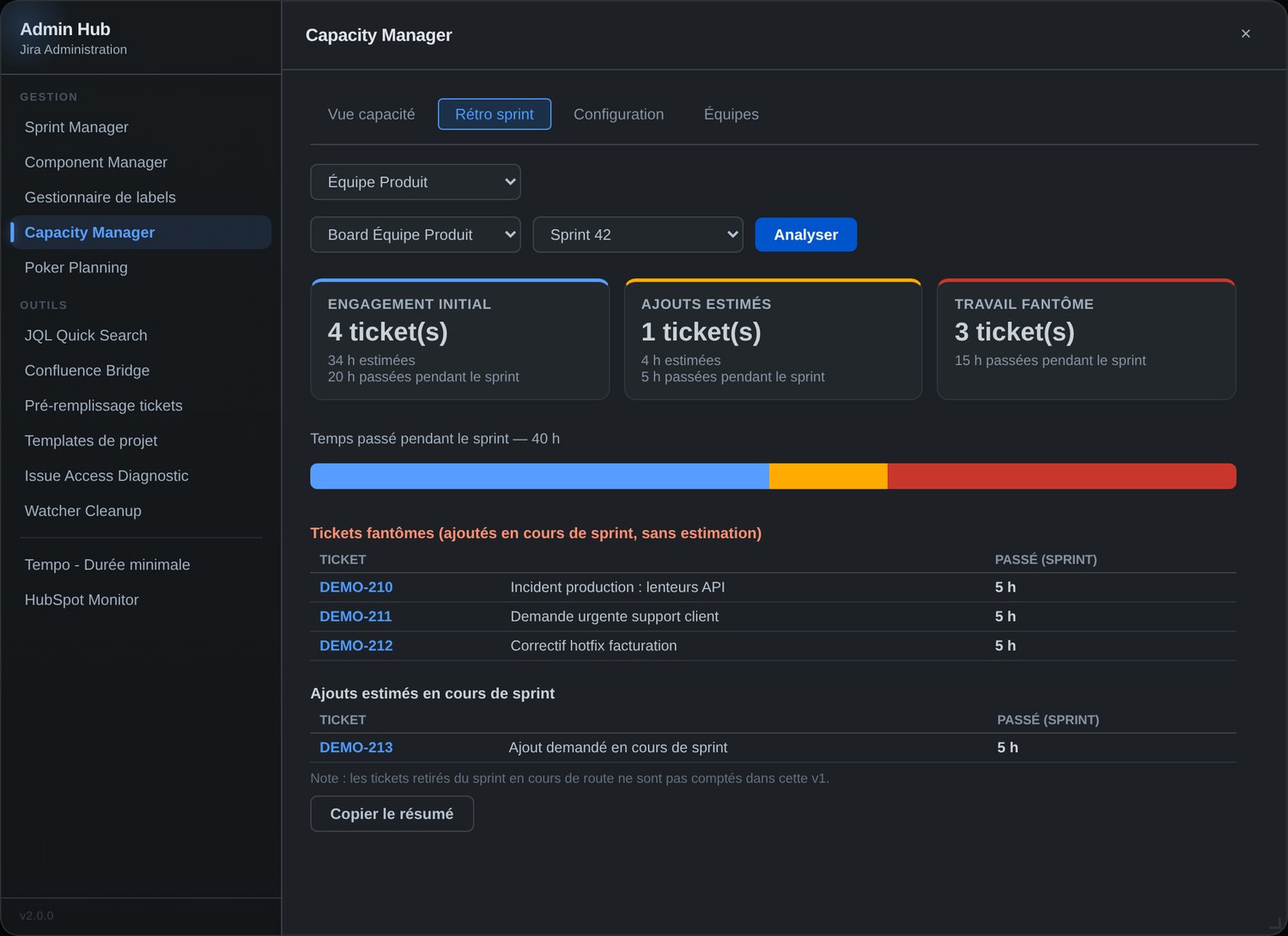
An after-the-fact analysis of a finished (or running) sprint. The tab sorts tickets into three families:
- Initial commitment — what was in the sprint when it started;
- Estimated additions — added mid-sprint, but sized;
- Shadow work — added mid-sprint and without an estimate. This is the invisible work that sinks a sprint without leaving a trace in the burndown.
For each family: ticket count, estimate, and above all the time actually logged inside the sprint window. A bar shows the split, shadow tickets are listed by time consumed, and a button copies a summary ready to paste into a retrospective report.
Since 2.1, the tab also shows Trends: a chart of the last closed sprints (done in green, remaining in orange, completion % per sprint, a Tickets / Story Points toggle) and four indicators — average velocity, completion rate, velocity trend (average of the last 3 sprints compared to the previous 3, with both values displayed), and average leftover at closure. This data comes from the snapshots written by the assisted closure; for sprints closed otherwise (or before 2.1), the “📸 Save this sprint's snapshot” button rebuilds the snapshot from the Retro analysis.
Detecting mid-sprint additions requires no particular discipline from the team: it relies on Jira history.
Client accounts
The Client accounts module (new in 3.2) brings Tempo's "accounts" mechanics without depending on Tempo: a team referential, a synced Jira field, and a burn-up budget tracking view. Everything lives in the shared team space — the module asks for its setup if it is not configured yet.
- Shared referential — each account carries a stable key (UPPERCASE, digits, dashes — never renamed), a free name (the field option label), a client, a category, an hour budget with its interpretation (monthly or total), a lead (searched among Jira users) and linked projects. The table is sortable by column and filterable by status (open / closed).
- One-shot Tempo import — "⬇ Import from Tempo" takes over the existing Tempo referential (key, name, client, category, status, monthly budget, lead) through the API token set in the Capacity Manager settings. Keys already present are skipped: no duplicate, the import can be re-run safely.
- Synced "Client account" Jira field — in the settings, create the field (select list) or adopt an existing field by its id; the id can be published as the team reference. "⇄ Sync the field" aligns the options with the referential, context by context: options created for missing open accounts, renamed by following the optionId (tickets follow), disabled for closed accounts. A "🖥 Screens…" assistant adds the field to the screens you pick, one explicit click per screen.
- Burn-up tracking — the Tracking view aggregates an account's spent time (whole year or month, day-first dates): issues found through a JQL on the field, then Tempo or native Jira worklogs depending on the "Source of spent time" setting. The chart shows spent, target and pace lines, with a within budget / above pace / over budget badge.
- Closing without deleting — an account is never deleted: closing disables its field option at the next sync, the ticket history stays consistent, and the account can be reopened.
- Home Budget tile, "Extension accounts" source — each budget tile on the Home screen can now pick its accounts source: Tempo accounts (historical behaviour) or the open accounts of this referential. In that mode the budget and its interpretation (monthly / total) come from the account itself — the interpretation selector disappears — and the spent time follows the same mechanics as the module.
Poker Planning
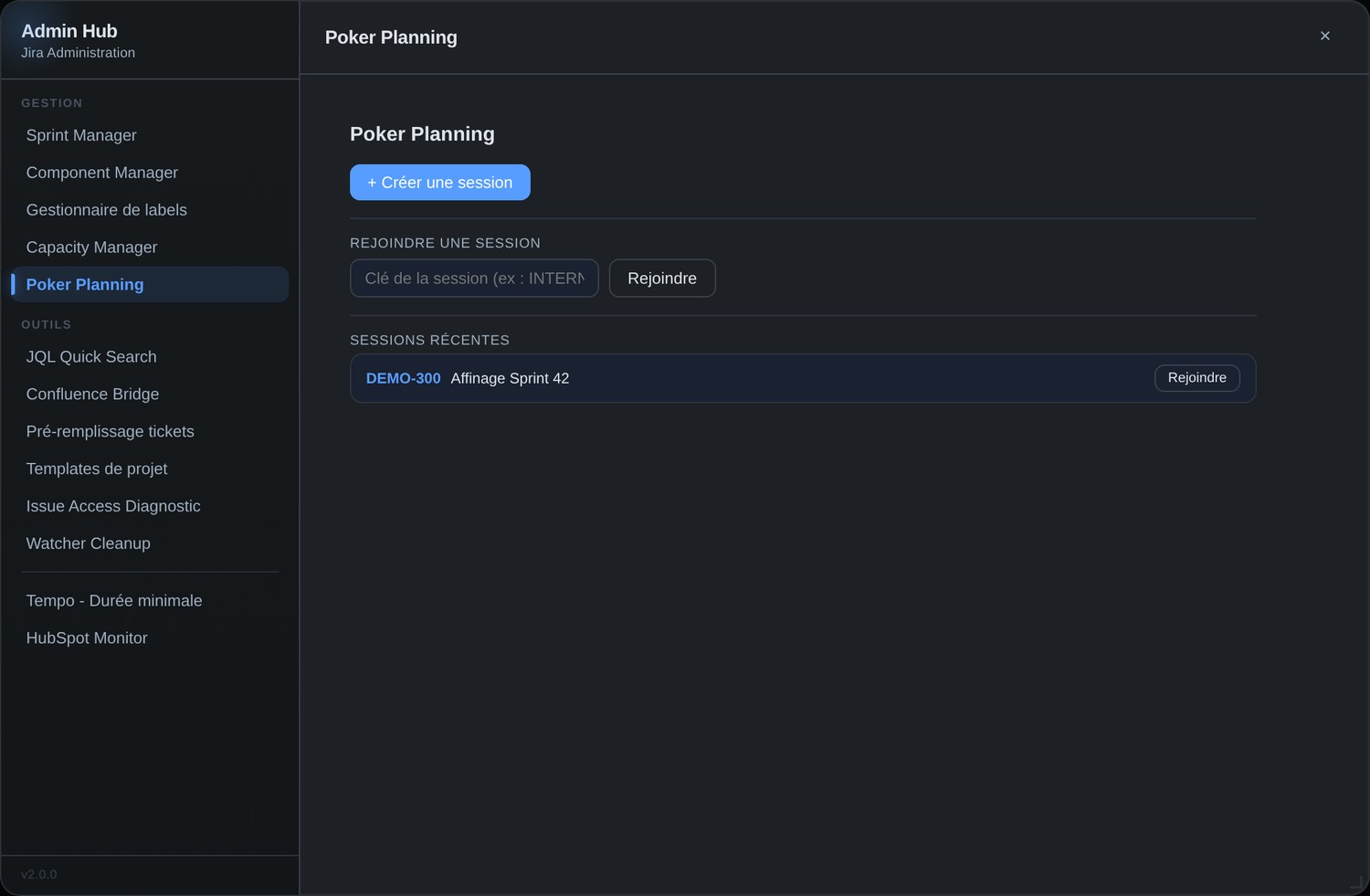
Collective estimation sessions, with no third-party server and no account to create: the session state is stored in a technical Jira ticket, and all participants synchronise through it.
- Create a session: a name, a JQL filter for the ticket list, and the voting unit (Fibonacci Story Points, or days).
- Join: with the session key, or via a direct link the facilitator copies into the team chat — one click opens Jira, the hub and the session.
- Each participant sees the current ticket (description and attachments included) and votes. Votes stay hidden until the reveal.
- Automatic reveal a few seconds after the last vote (the manual button remains available to force it). Perfect consensus = confetti.
- The chosen estimate is written to the Jira ticket. A ticket can also be rejected (reason comment, backlog label, and transition to the chosen status).
- At the end of a session, the extension offers to clean up the “poker” labels left on the tickets that were reviewed, and applies a closing status to the technical session ticket so it does not pollute the backlog.
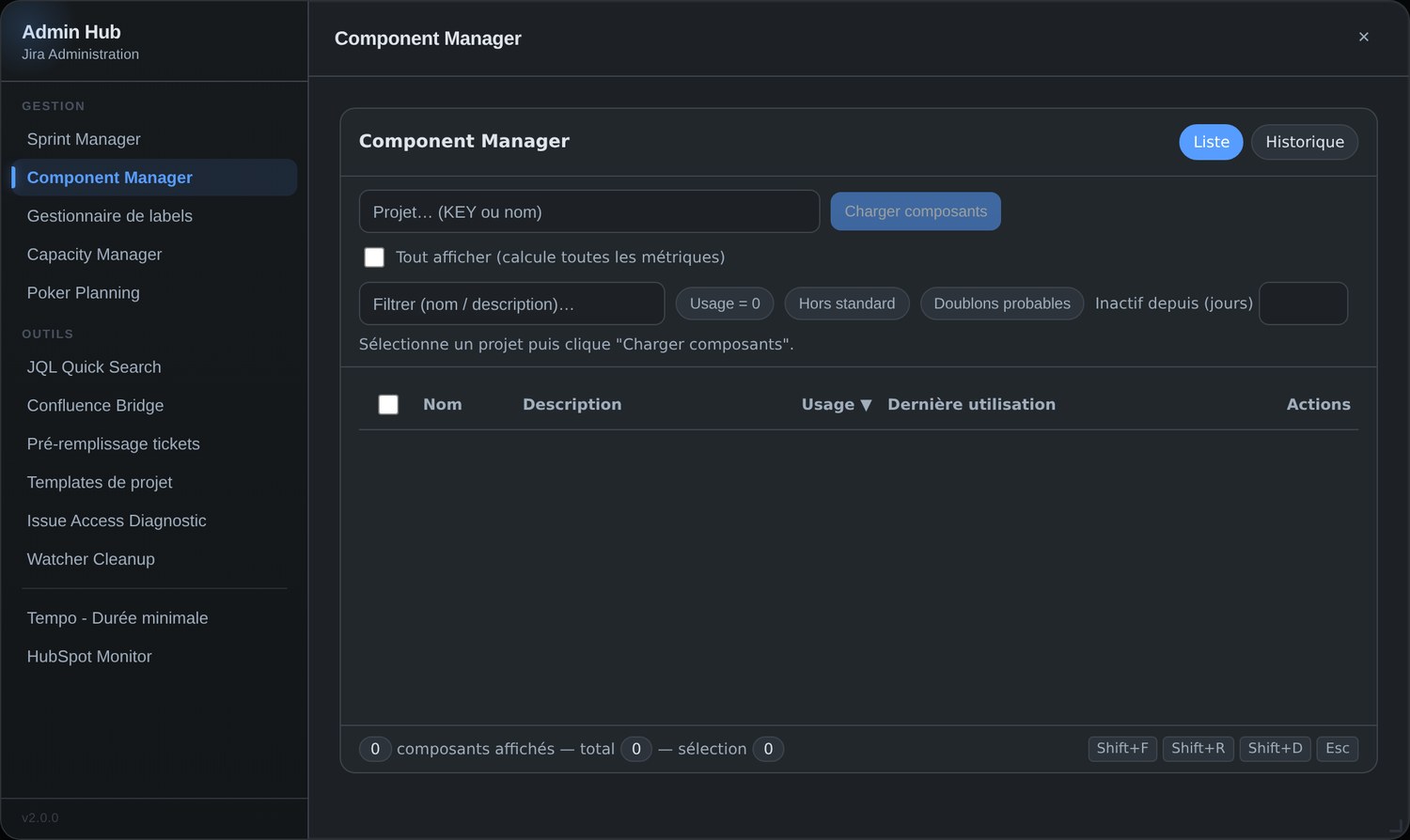
Component Manager
Cleans up a project's components, which Jira only lets you manage one at a time.
- Loads a project's components with their usage (ticket count) and last use.
- Ready-made filters: usage = 0, non-standard (naming convention breaches), probable duplicates, inactive for N days.
- Bulk rename and delete on the selection, with an operation history.
- Keyboard shortcuts for regulars: Shift+F (filter), Shift+R (rename), Shift+D (delete).
Label Manager
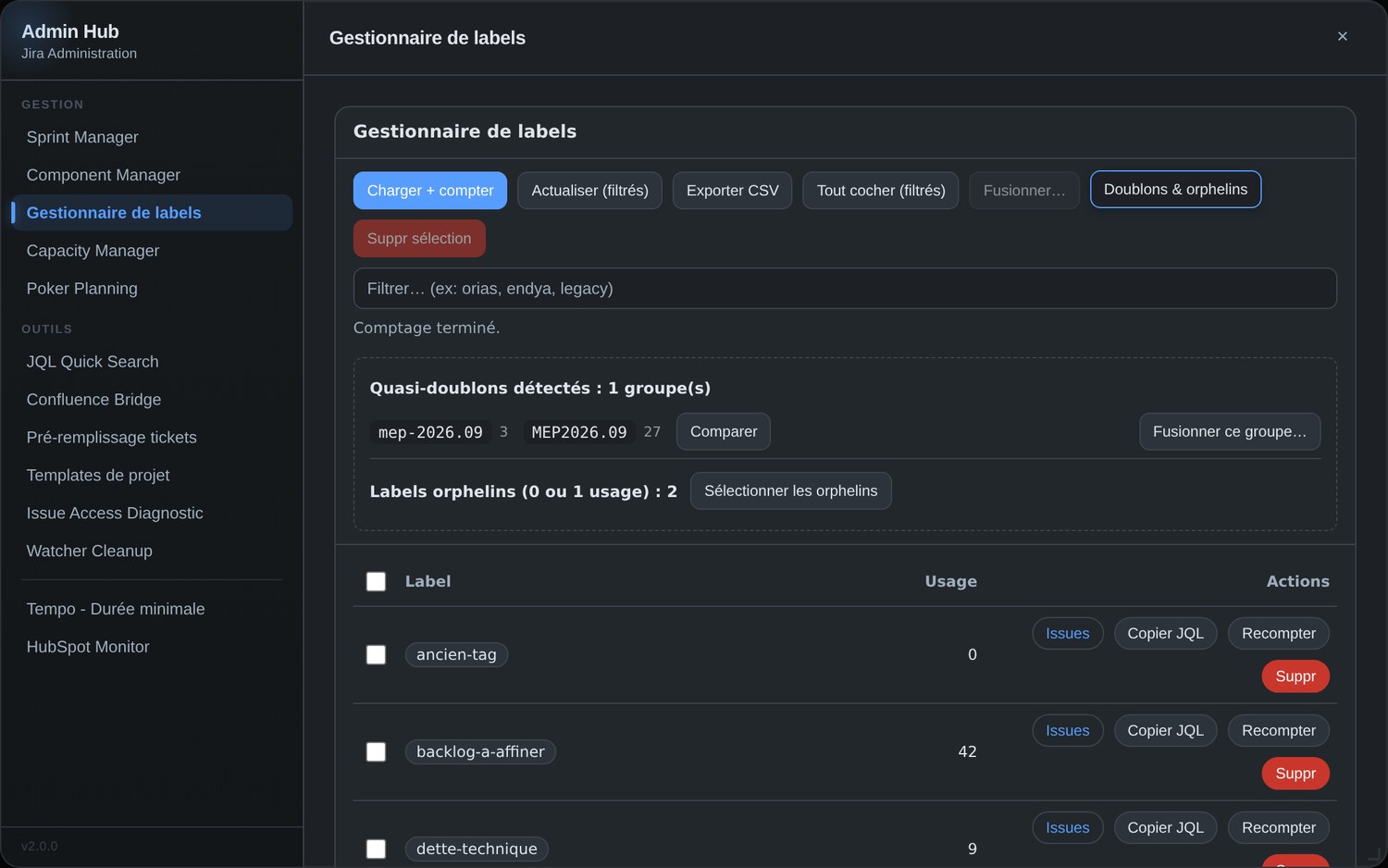
Jira labels proliferate: spelling variants, tags applied once then forgotten. This module inventories them and puts you back in control.
- Load + count: every label on the instance with its usage count. Search, sort, CSV export.
- Duplicates & orphans: detects genuinely problematic variants (hyphens, dots, spaces, accents) and labels used 0 or 1 time.
- Compare: for a group of variants, shows how many tickets carry exactly each form — useful to know whether two labels cover the same scope before merging them.
- Merge: replaces several labels with a single one on all affected tickets (the most used variant is suggested by default).
- Bulk delete the selection — handy combined with “Select orphans”.
mcp and MCP are
therefore already equivalent for search — the module deliberately does not flag them as duplicates, since
merging them would change nothing.
Tool modules
These modules speed up one-off tasks: searching, creating, diagnosing.
JQL Quick Search
A more comfortable Jira search editor, with two ways to express a need.
AI tab (optional)
Describe what you are looking for in plain language; the extension generates the matching JQL and runs it. Requires your own Claude API key, entered in the module settings — without a key the tab stays inactive and the JQL tab is used by default. A scope configurator (projects, types, status, assignee) frames the generation; its summary is always visible.
JQL tab
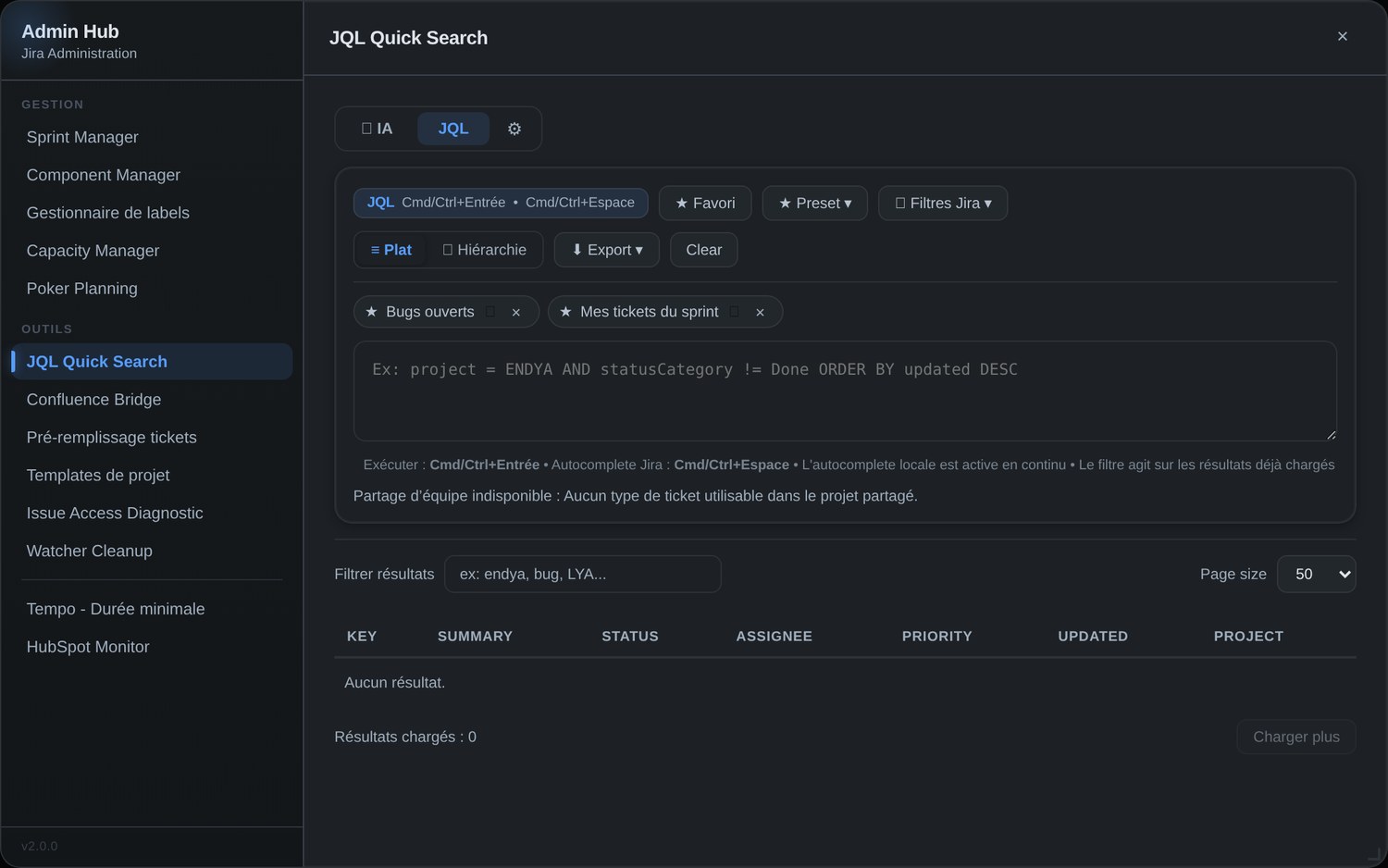
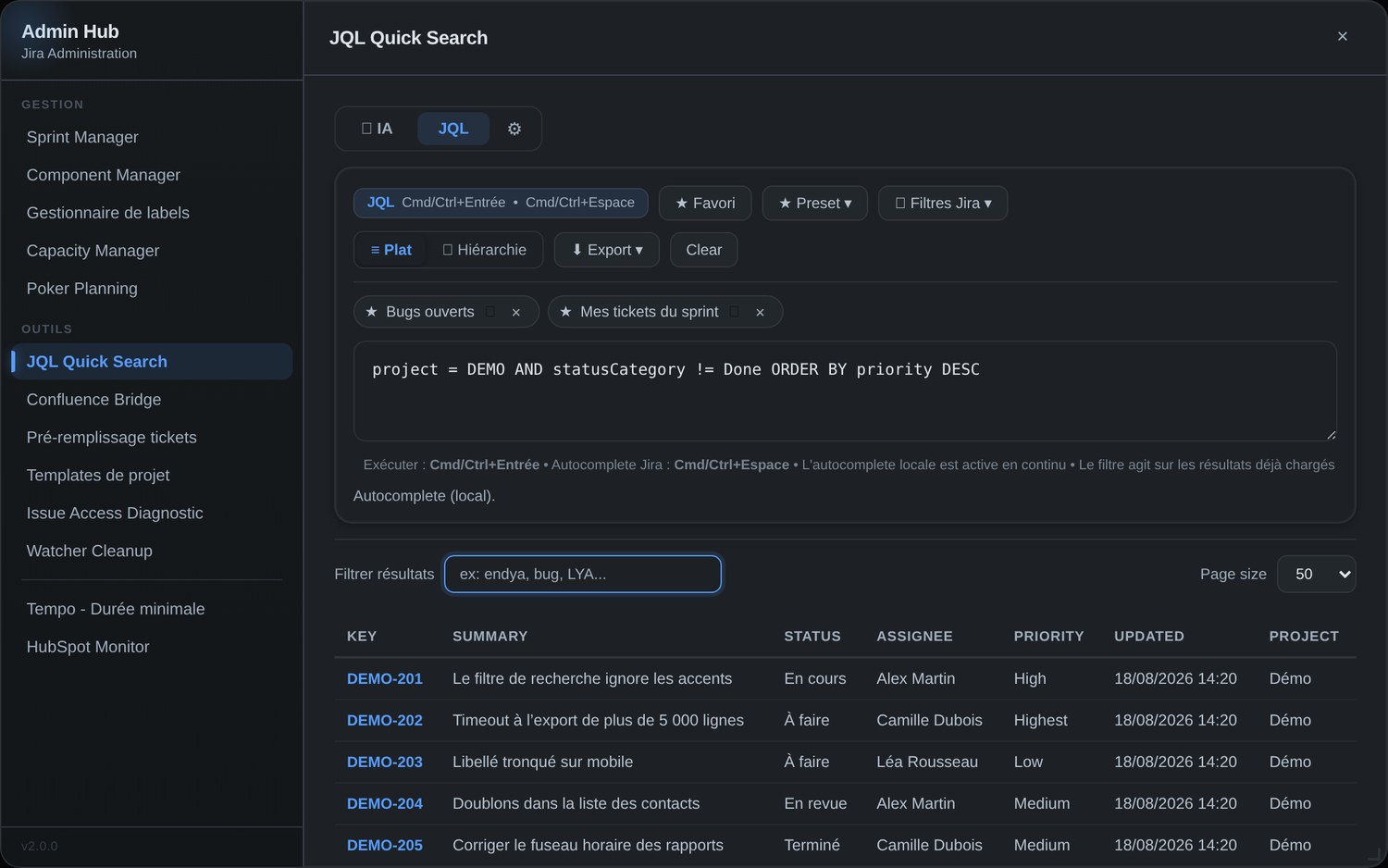
- Editor with immediate local autocompletion, and on-demand Jira autocompletion (Ctrl+Space). On people fields (assignee, reporter, watcher…), the search targets real users.
- Run: Ctrl+Enter.
- Reusable favourites and presets, personal or shared with the team (👥). Your saved Jira filters are accessible too.
- Results as a list or a hierarchy (parents and children), column sort, filtering over already-loaded results, pagination.
- CSV export, or a rich HTML report (title, description, comments and links included) to share an analysis.
- Change a status without leaving the search (2.1): each result's status chip is clickable — a menu lists the transitions actually available for that ticket; one click applies it and the chip updates.
- Bulk actions (2.1): every row has a checkbox (and “Select all” ticks the filtered results). The bar that appears offers three operations on the selection: transition to a status (each ticket looks up its own transition by name — those without one are counted “no transition”, not as errors), assignment (user search, or unassign), and labels (add or remove, several at once). A final tally is shown, and everything is recorded in the Audit log.
Project templates
Creates a full ticket tree in one go from a template: epic, tasks, sub-tasks, estimates and dependency links.
Built-in templates
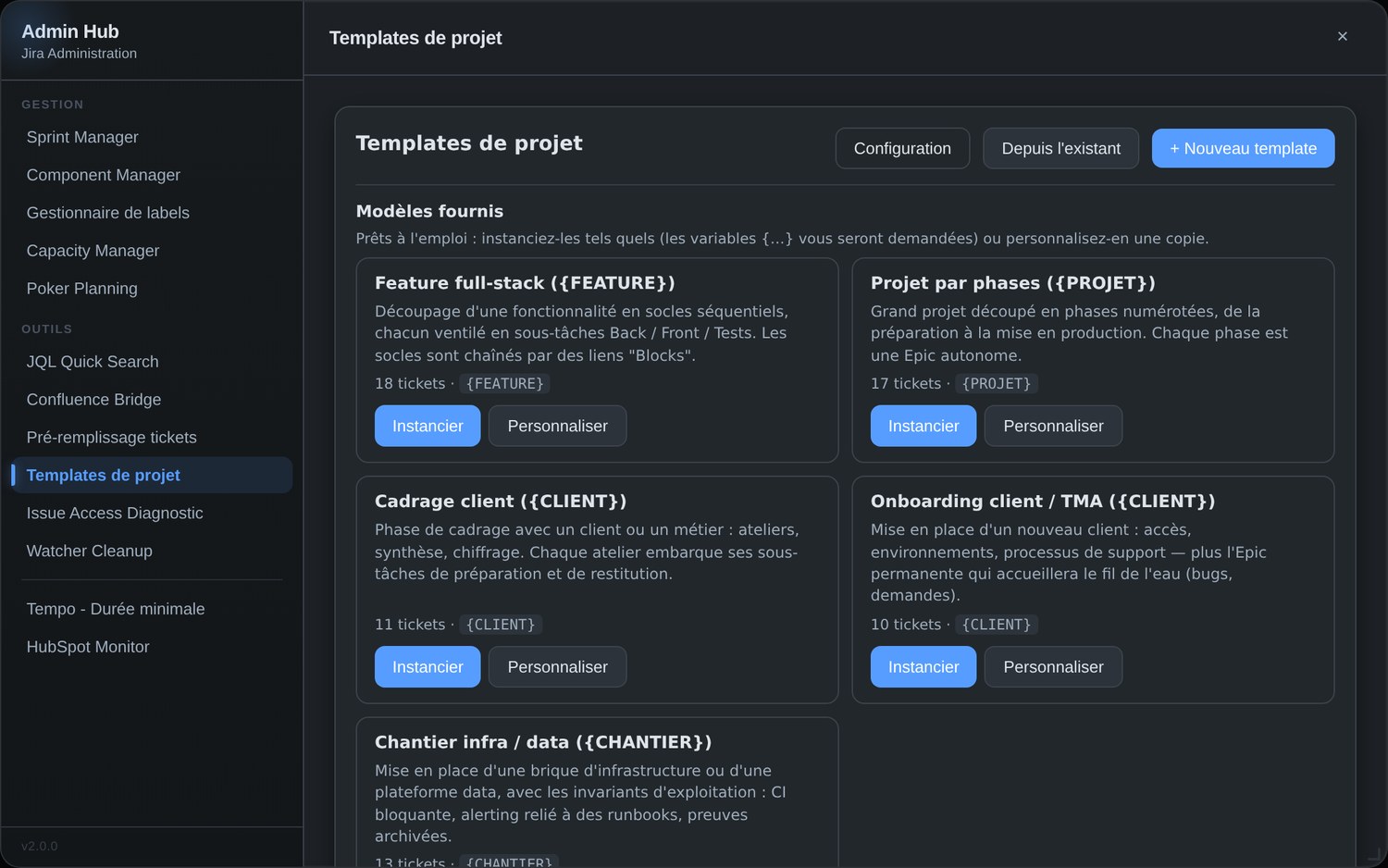
Five templates ship with the extension, usable immediately with no configuration:
| Template | Contents |
|---|---|
| Full-stack feature | Sequential foundations (data, API, UI, acceptance) chained with “blocks” links, each split into Back / Front / Tests / Architecture sub-tasks |
| Phased project | Scoping, design, development, acceptance, go-live |
| Client scoping | Gathering, workshops, synthesis, sizing, presentation |
| Client onboarding / support | Access, environments, support processes, plus the permanent run-the-business epic |
| Infra / data workstream | Setup and CI, per-environment deployments, observability, security, evidence |
Variables
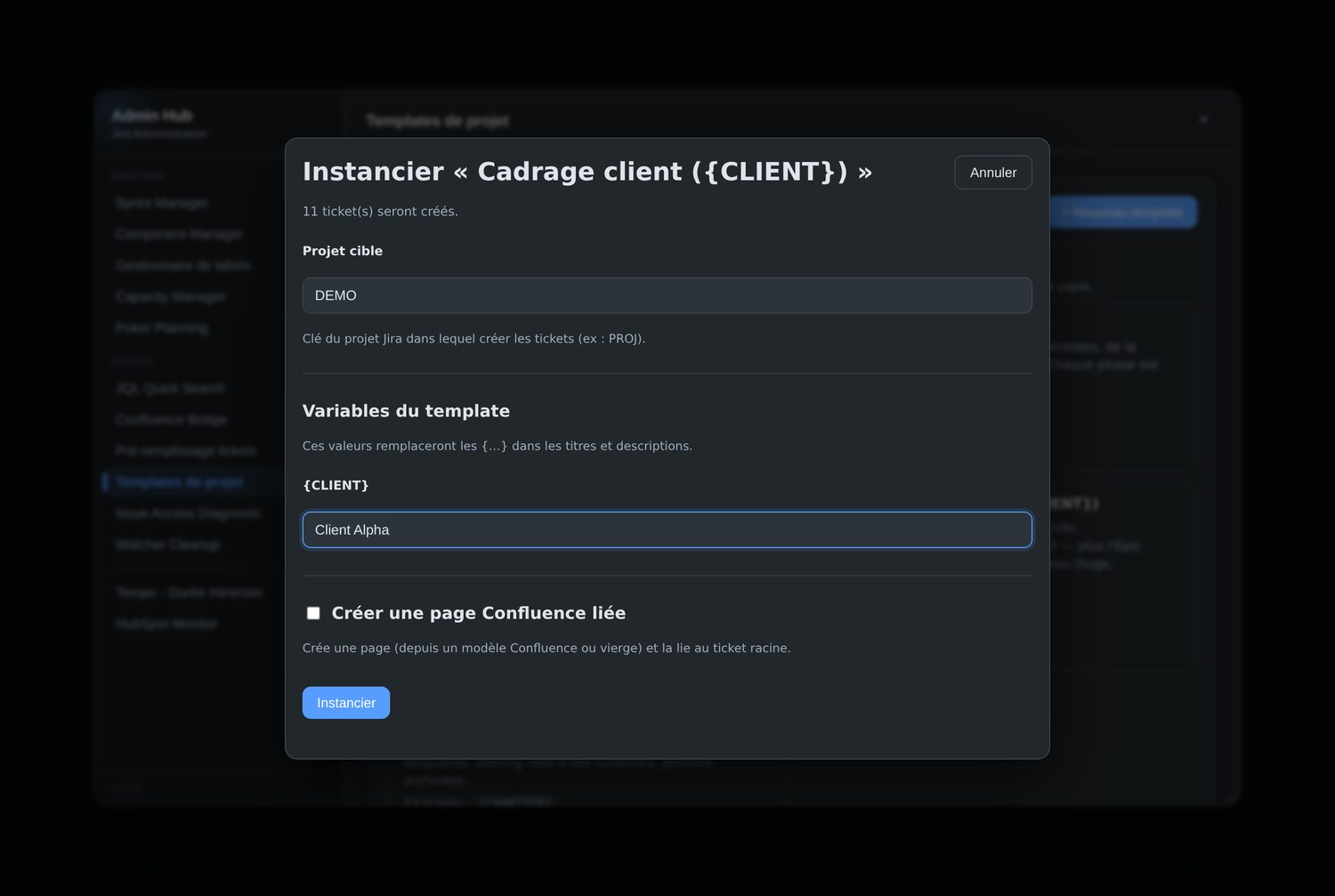
Templates contain variables in braces, for instance {CLIENT} or {FEATURE}.
On instantiation the extension detects them and asks for their values: every title and description is
filled with what you type. The same template thus serves each new client or each new feature.
On instantiation
- Target project check: if a ticket type from the template does not exist there, the extension offers an equivalent to pick rather than failing.
- Creation in tree order, with priorities, estimates and links; ticket-by-ticket progress, then a summary with each created key clickable.
- Option: create a Confluence page (from a Confluence template or blank) and link it to the root ticket.
Your own templates
Two ways to build a house template: start from a copy of a built-in one, or use
“From existing” — you provide the key of an already well-structured epic, its tree is
imported into the editor, and you can swap a client name for the {CLIENT} variable in one step.
Your templates are stored in a dedicated Jira project, which makes them shareable with the team.
Ticket prefill
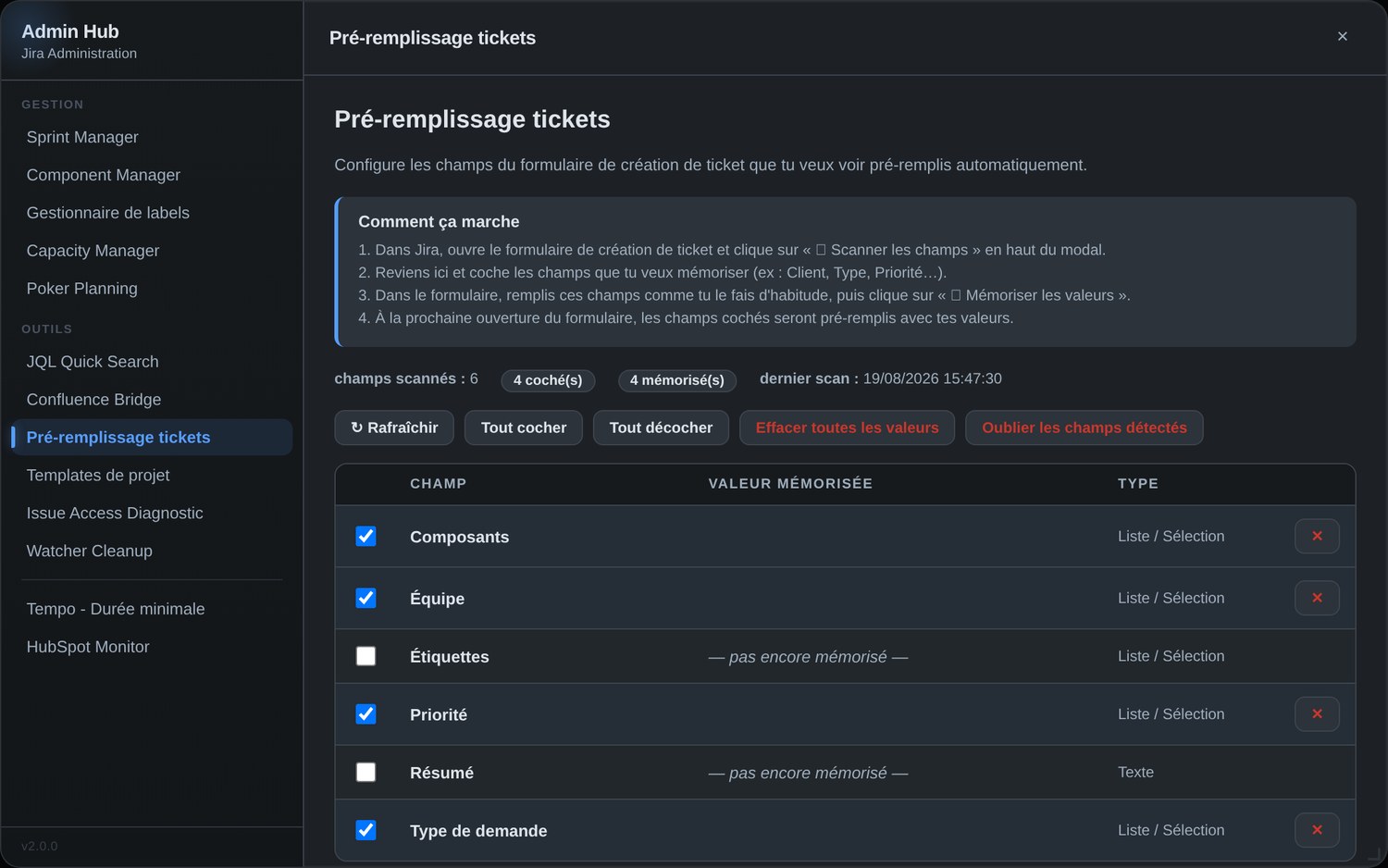
If you often create tickets with the same values (same type, same component, same team), this module memorises those choices and restores them in one click.
- The extension scans Jira's creation form and lists its fields.
- You tick the ones to memorise — the others are ignored.
- From the form, one button captures the current values, and an “Apply” button re-injects them on subsequent creations.
- Application is deliberately manual by default (an automation option exists), and never touches a text field you have already filled.
Confluence Bridge
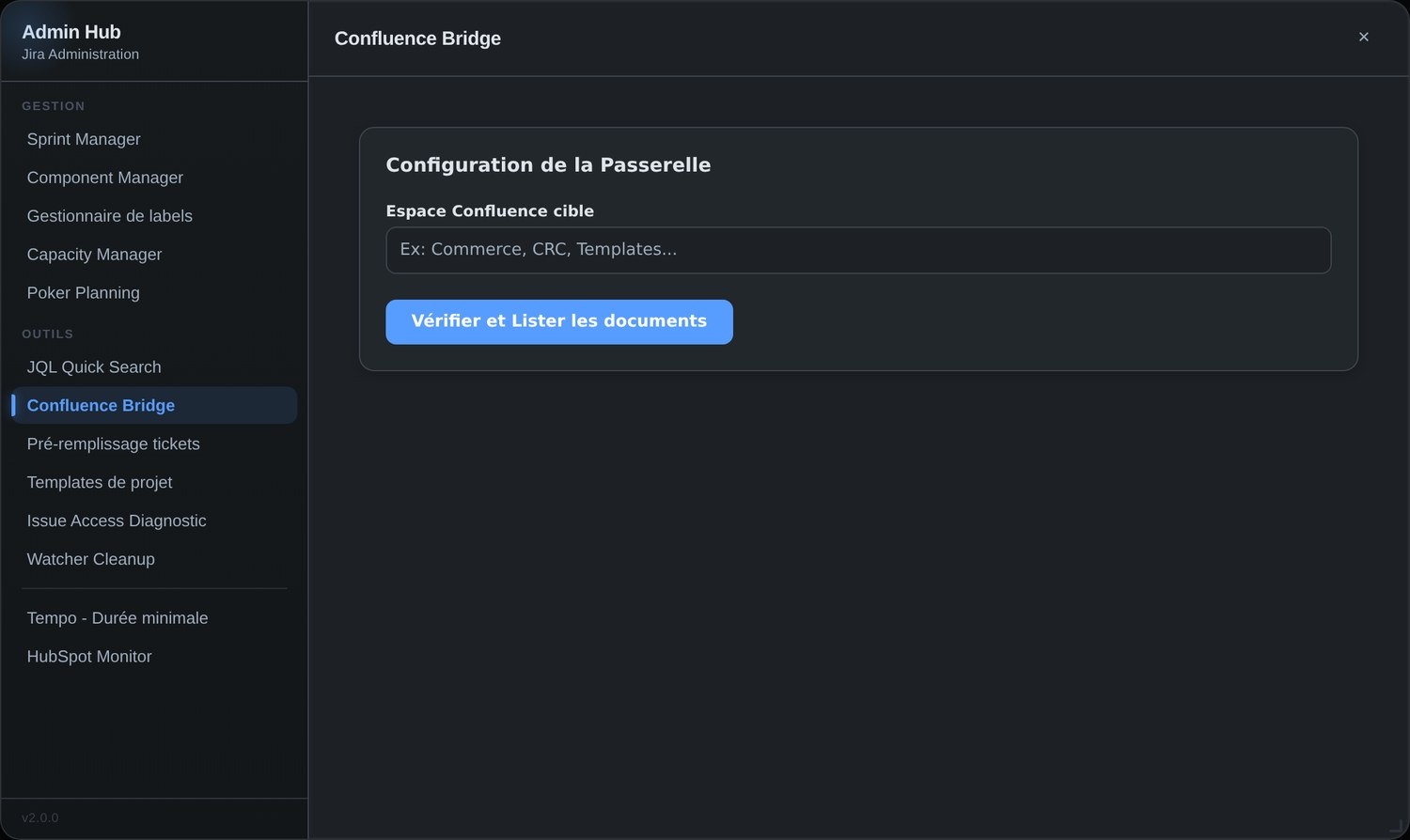
Two services around Confluence:
- Page templates: a filtered list of the Confluence templates actually available, to create a page from the right blueprint without digging through the tree.
- Rich transfer area: an intermediate clipboard for pasting formatted content into the Confluence editor where direct insertion is blocked or degraded.
Issue Access Diagnostic
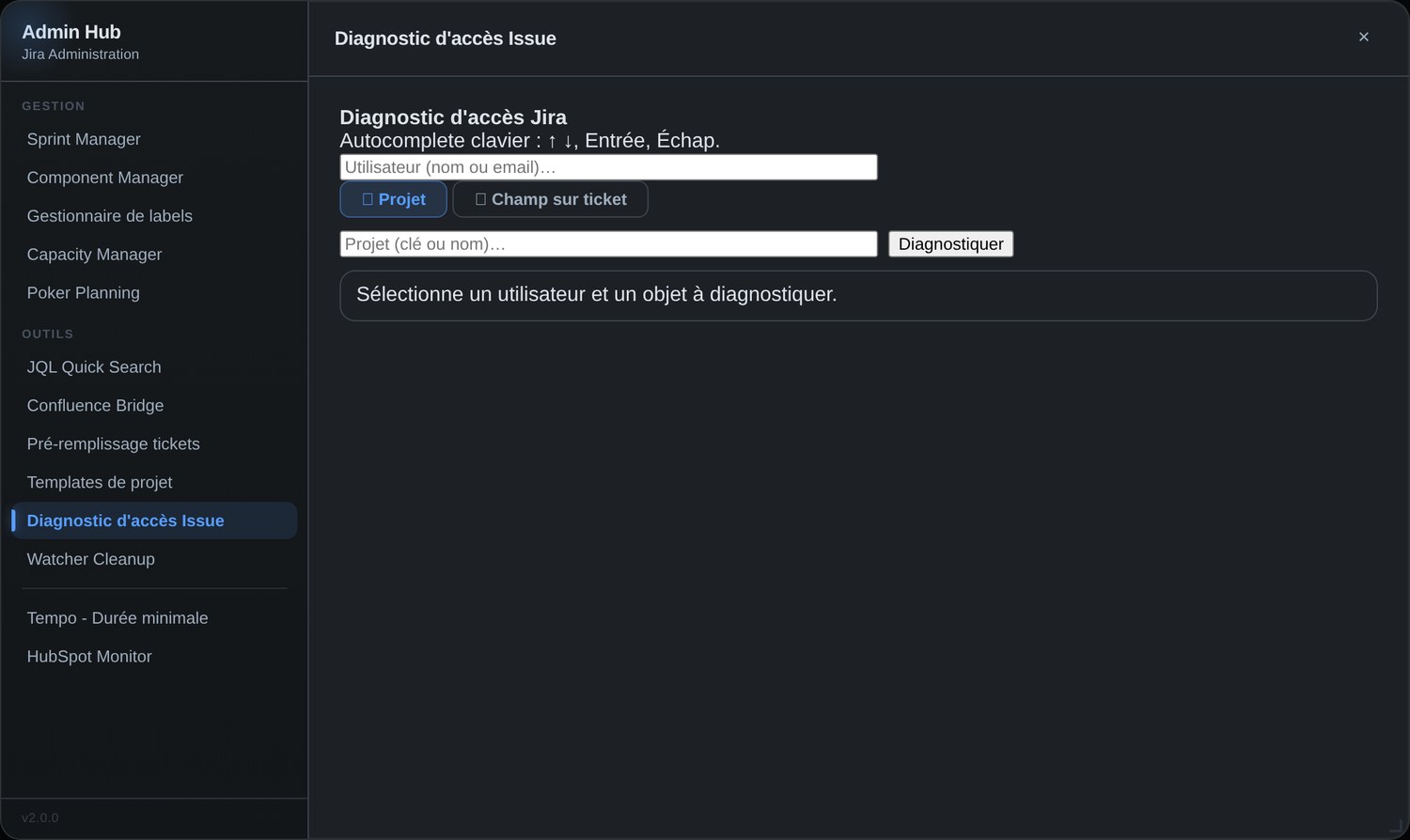
Answers the question that comes back every week: “why can't so-and-so see this ticket?”
You point at a user and a ticket; the module checks the full visibility chain: project and role membership, applicable permissions, the ticket's security level, screen schemes and field configuration. It names the link that blocks, instead of leaving you guessing.
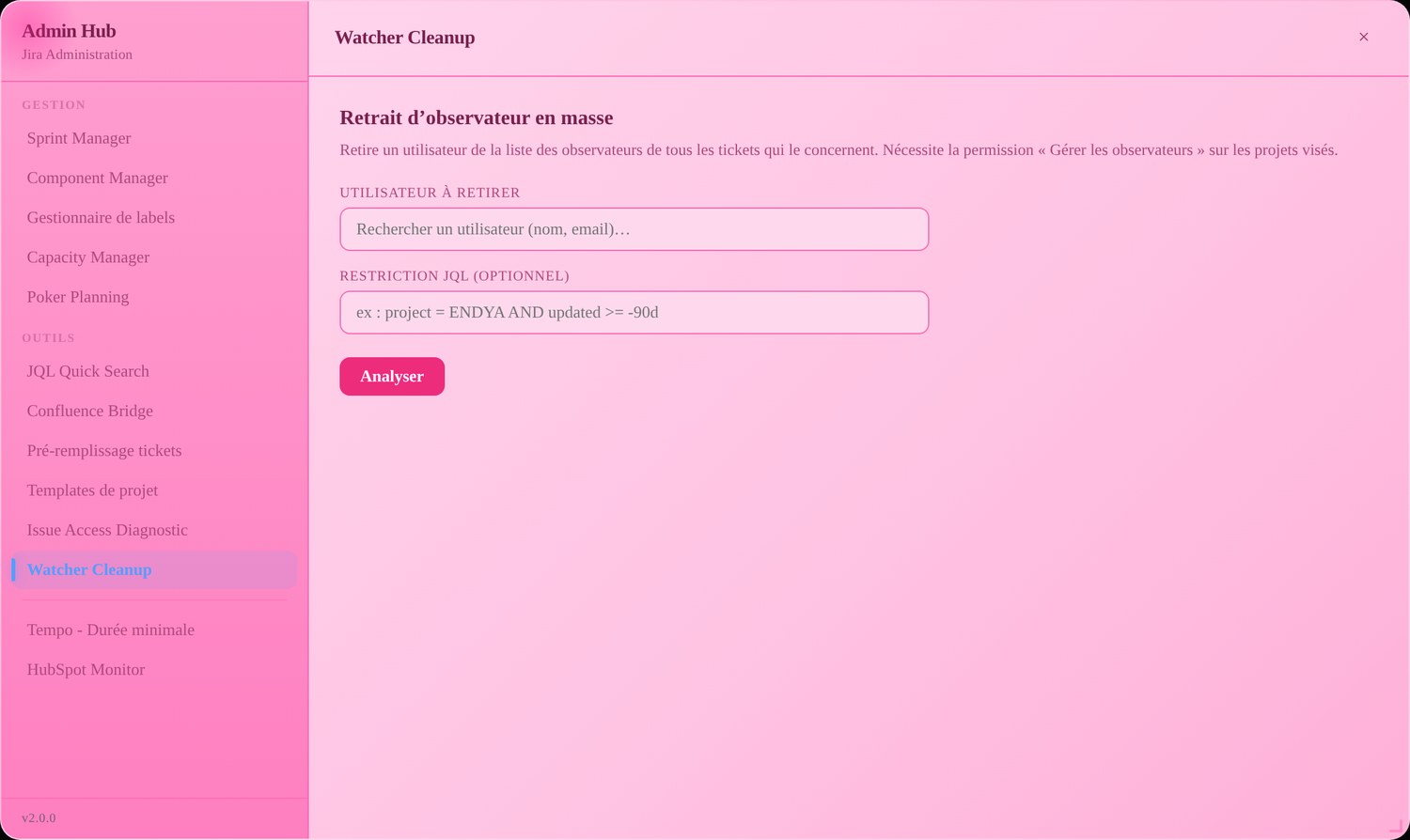
Watcher Cleanup
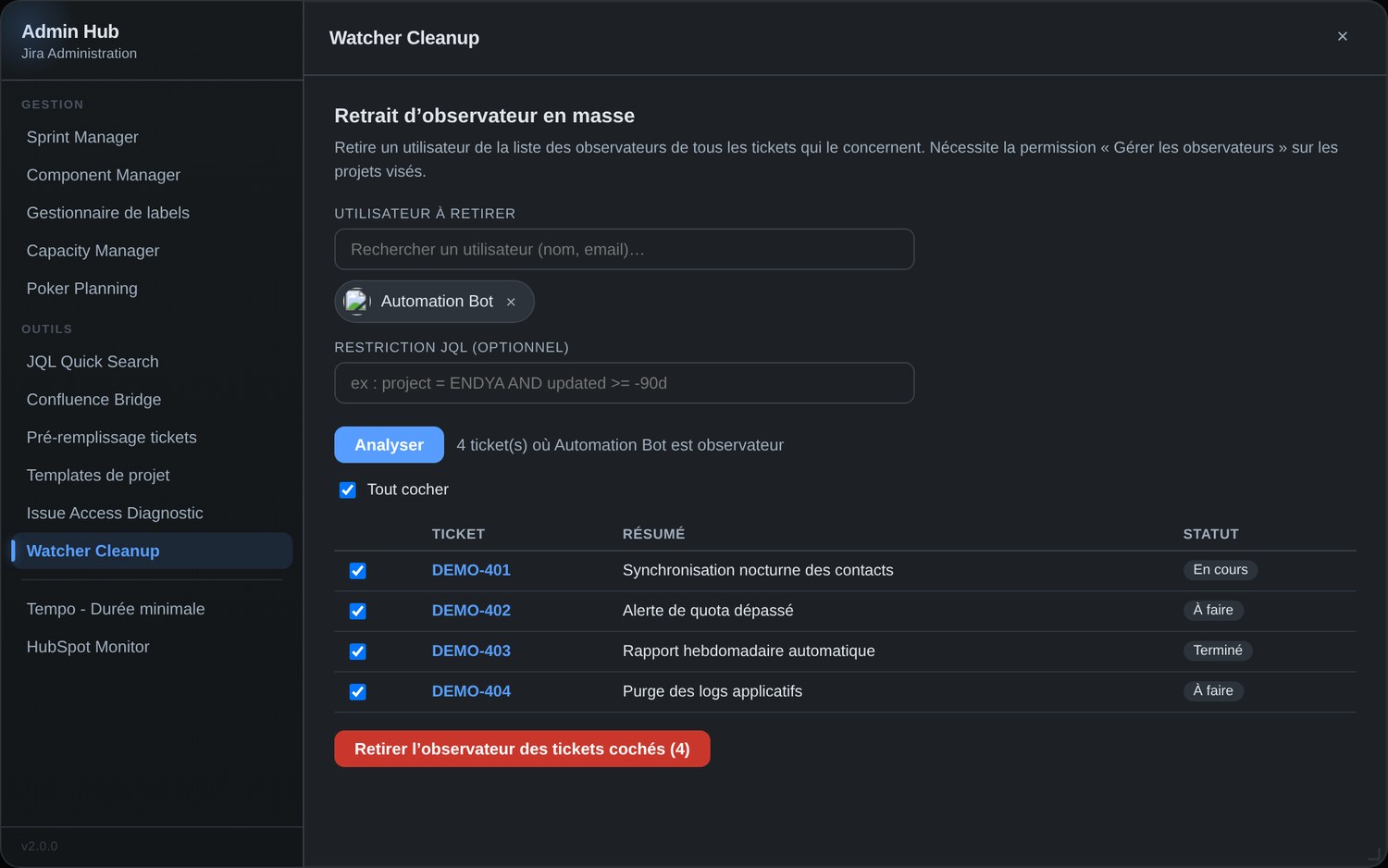
Removes a watcher from every ticket they follow, in one operation.
Typical use case: a technical account automatically added as a watcher by an integration, triggering useless notifications for the whole team.
- User search by name or email; the last cleaned account is offered in one click (these cleanups tend to recur).
- Optional JQL restriction (one project, a period) to avoid sweeping the entire history.
- Analysis first: the list of affected tickets is displayed, boxes ticked, before any action.
- Sequential removal with a tally, then an automatic re-analysis to show the real state after cleanup.
Audit log
The Audit log module (new in 2.1) gathers two views, in tabs:
- Extension actions — every bulk action performed through the extension (transitions, assignments, labels, merges, sprint closures, watcher removals, retro snapshots) is recorded in the shared team space: who, what, when, how many, and any error count. Filters by module, person and text.
- Jira audit — the administration events Jira records natively (permissions, workflows, user management, projects…), in a more browsable view than the native screen: search sent to Jira, date bounds, category filter, changed values detail on row click, pagination. This tab requires the “Administer Jira” permission.
The Jira audit tab shows the author of every event, resolved to a real name (including inside changed values and associated items — lists of account IDs become names, with the account nature: "portal customer", "app"). The Author field searches across all platform users: since the audit API cannot filter by author, the extension then scans events page by page (bounded depth, progress displayed) until it finds that person's actions. Some events have no author: Jira only records authenticated accounts — customer self-signup on the portal, directory sync, organisation policies.
Both tables have resizable columns (double-click the handle to restore the default width); your widths are remembered. Selecting text in a row does not expand it — copy/paste stays natural.
Optional integrations
These modules talk to external services. Each is enabled with your own token, entered in the module settings and kept locally.
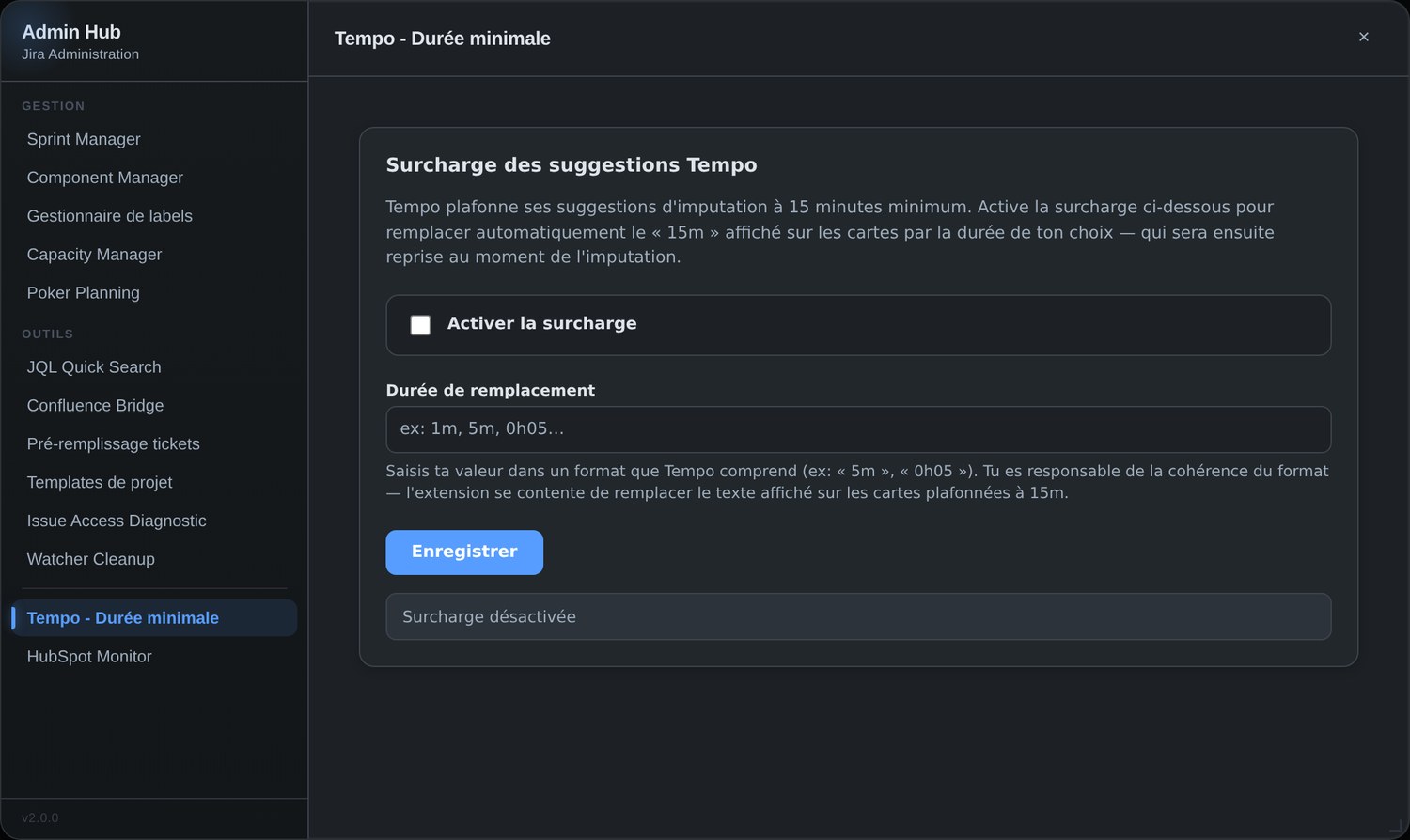
Tempo — Minimum duration
Tempo enforces a default minimum logging duration of 15 minutes. This module lets you replace it with the value of your choice, both on logging suggestions and in the logging modal, including when it appears inside a Tempo iframe.
HubSpot Monitor
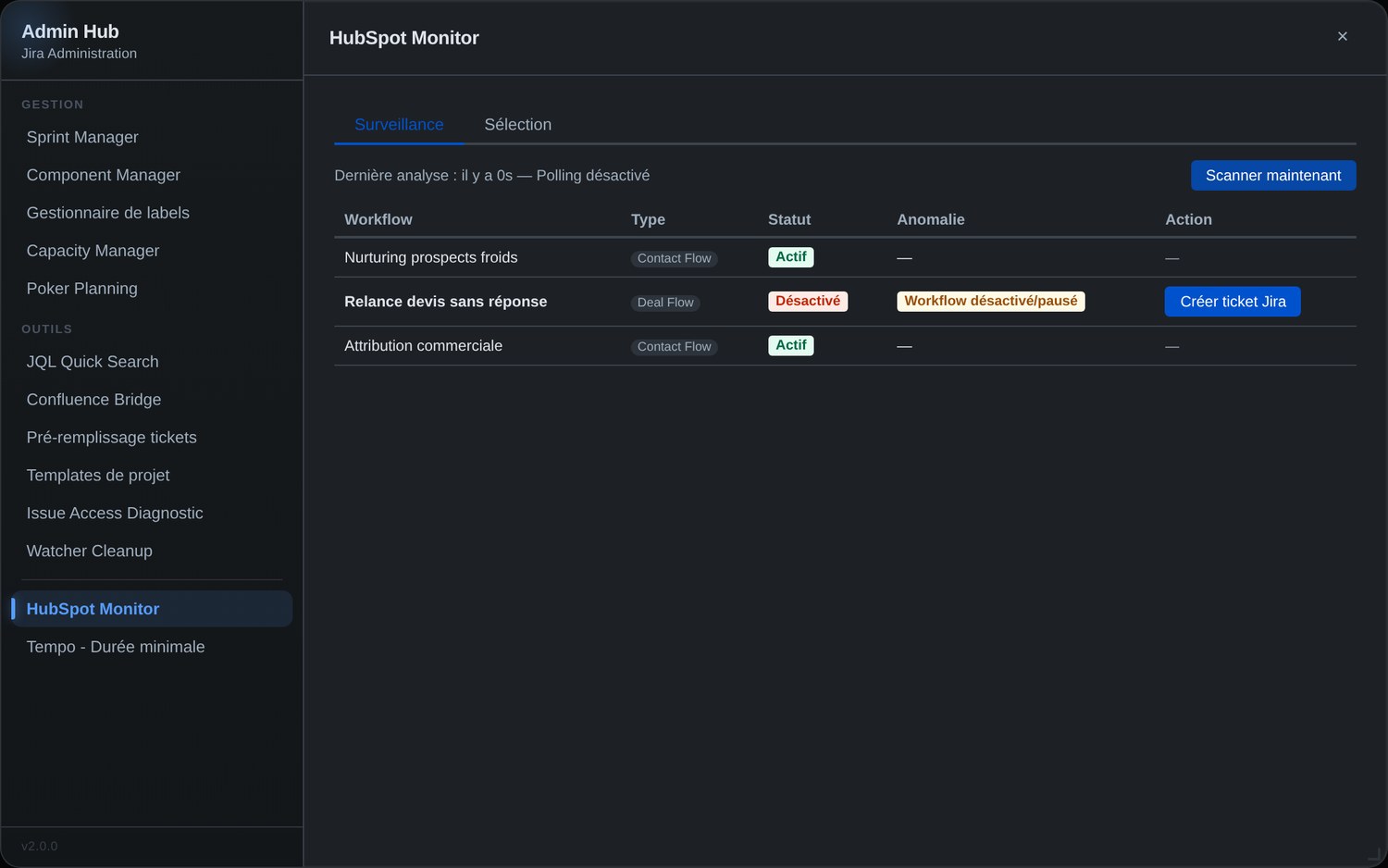
Spots disabled workflows among those you monitor and
offers to create a Jira ticket in one click for each. Useful when part of the sales
chain depends on automations that stop silently. Requires a HubSpot token
(automation scope).
The HubSpot API does not publish an execution error state: the usable signal is whether the workflow is enabled. Periodic monitoring only runs while the module is open.
Enhancements inside Jira pages
Some modules have no screen in the hub: they quietly enrich Jira's own pages. They are enabled and disabled like the others, from Module settings.
| Where | What it adds |
|---|---|
| Search results (issue navigator) | Under each ticket, the list of its linked tickets with key, status and direct link. |
| Plans (roadmap) | Create a sprint or add tickets to an existing sprint straight from the columns. |
| Ticket page | Inline preview of HTML attachments, no prior download. |
| Boards | Filter by creator of the ticket, missing from the native filters. |
| Boards | Aging badge (2.1) on each card: days since the last status change, from green to dark red. The colour thresholds are the Sprint Manager's — local, or inherited from the team baseline. |
| Tempo | Enriched links to tickets and enforcement of the minimum logging duration. |
| admin.atlassian.com → Access requests | A direct “Deny” button (no context menu needed) and bulk denial with checkboxes and progress. |
Privacy and data
| Question | Answer |
|---|---|
| Where are my settings stored? | In your browser's local storage, per Jira domain. Nothing is sent anywhere else. |
| Does the extension have a server? | No. It calls Atlassian APIs with your session, plus the services you explicitly configure (Tempo, HubSpot, Claude). |
| Is there telemetry? | None. No usage statistics, no tracking. |
| What does the team see if I enable sharing? | Only the items you explicitly share (presets, favourites, templates). Never your tokens. |
| What permissions are needed? | Your Jira account's. A module can do nothing you could not do by hand — if an action fails, it is usually a missing permission on the project. |
Troubleshooting
The “Administration addon” entry does not appear / disappears after a reload
This is the most frequent case, and it concerns Firefox: extensions do not get
automatic access to sites. Right-click the extension icon →
“Always allow on…”, or about:addons → the extension →
Permissions tab → allow access to the atlassian.net domain. Without this permission,
the extension only runs on the tab where you just clicked its icon, and the effect vanishes when the
page reloads.
A module shows “no board / no team”
Check the module settings (gear in Module settings): project key, mapped board, selected team. Board and label lists are cached for about 30 minutes; the refresh button forces a reload.
A bulk action reports failures
Operations are independent: one failure does not stop the others. The usual cause is a missing permission on the affected project (manage watchers, edit a ticket, apply a transition), or a transition that does not exist from the current status.
After an update, a module behaves oddly
Reload the Jira page (Ctrl/Cmd+Shift+R). If the problem persists, disable then re-enable the module in Module settings.
One more thing…
The extension contains an easter egg. It is activated with the Konami code: ↑ ↑ ↓ ↓ ← → ← → B A, typed on a Jira page (outside an input field).
Jira then turns glitter pink. The animated effects (sparkles piling up at the bottom of the screen, giant unicorns and teddy bears crossing the page, scrolling messages) only start after 45 seconds of inactivity — enough to stay presentable in a meeting, and surprise whoever comes back from lunch. The same code turns the mode off.